Pages

CPU Components

Connect the CPU Components

TechSupp247

TechSupp247

Motherboard Components

Motherboard Components

USB Protection

USB Data Protection

Wifi Printer

Wifi Printer Setup

Showing posts with label Desktop Support. Show all posts

Monday, November 29, 2010

Different Types of Computer Processors

Different Types of Computer Processors

Traditionally computer processor design and innovation has advanced at an exceedingly fast rate. As a corollary, the market for computer processors is vast and often times confusing to a first time explorer. However, learning the key feature sets and functions that set each processor apart from one another is not very difficult at all.
Brands
Since the inception of mainstream computing into the homes of society, but there has been consumer and commercial level computer processor manufacturers. The Intel Corporation is undoubtedly the first name when any consumer thinks of the word processor is mentioned. Intel has been producing the most top-line computer processors for several decades now. AMD or Advanced Micro Devices is Intel's only true competitor in the computer processor market producing computer processors, which rival the speed and power of Intel's.

Architecture
When considering the architecture of a computer processor, there are really only a few key factors to consider. Whether the processor has a 32-bit or 64-bit core determines whether or not the processor can run your software correctly. The amount of on die processor cache memory is also of importance, as this integrated memory space is where processor instructions are held before execution. Finally, is the system a single, dual or quad core processor? While multicore processors do have their advantages there is still a lack of software able to utilize multicore processors.

Clock Speed
The clock speed of a computer processor determines the rate at which a processor executes instructions on data. Today this rate of execution is expressed in billions of instructions per second. Though having a computer processor with a high clock speed is advantageous, it alone is not the only factor that dictates overall system performance. Higher clock speeds increase all system tasks, such as web browsing, movie encoding, and system utilities like anti-virus software.

Maintenance
Computer processors must be maintained according to their manufacturer's specifications in order to perform at their full potential. All too often consumers will pick an expensive cutting edge processor while neglecting support hardware for their processor. Different processors require different power supplies, proper heat sink/ fan combos, and adequate memory in order to function correctly. Above all, different processors require different cooling solutions. Each processor has its own TDP (Thermal Design Power) which is an indication of heat output which must be dissipated.

Current Models
The most recent offerings from Intel and AMD are the Core i7 quad core and Phenom II quad core processors respectively. The Core i7 supersedes the Core 2 series of dual and quad core Intel processors and the Phenom II supersedes the Phenom I dual and quad core model AMD processors. Outside of extreme gaming or high-end 3D graphics applications, even the Phenom II and Core 2 older model processors are more than adequate for the home user and come at a much lower price point in most cases.

Tuesday, November 2, 2010

Printer goes offline on reboot

On reboot computer, the printer in Windows 7 XP mode goes offline

1). In Control Panel, Printers, delete offline printers. If they wont delete, it may be because there are pending print jobs in the queue. Open the printer and Cancel the jobs..


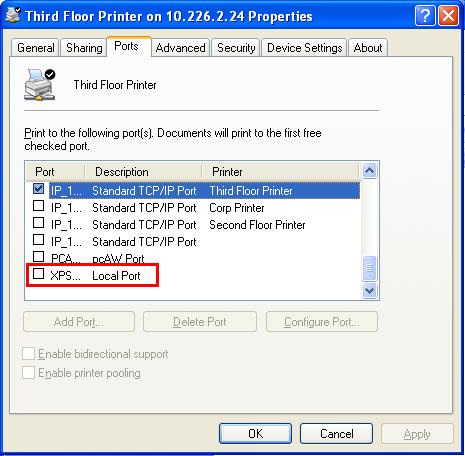
2). In Printer properties, Ports tab, delete the previously installed printers (offline status) that appear as Client Side Rendering Provider under the Description column.


To do this, highlight the port, then click on Delete Port button. Click Apply.


3). Restart your PC.
4). Now reinstall the printers as follows:
         1). Open Control panel, Printers, and click Add a printer.


         2). Click Add a local printer.
         3). Select the "Use an existing port" radio button, and select LPT1: (Printer Port). Click Next.
        4). Install the printer driver. Mine were found in the list inlcuded with Vista. Select the manufacturer and the printer. Click Next.
          5). In the next window, accept the printer name or type in a new name. Leave the "Set as default printer" box unchecked. Click Next.
5). Vista should now install the printer. A window should open saying "You've successfully added printer name.

6). DO NOT Print a test page at this time, because nothing is connected to the LPT1 port on the laptop. Just press Finish. The printer you just added should appear in the Printers window.
7). Click ONCE on the newly added printer to highlight it, then right-click and open Properties.
8). On the Ports tab, click Add Port “select Local Port, then click New Port”

9). When the Port Name window open, Enter a port name as follows: \computername\printername (replace computername with the name of your PC acting as print server, and printername with the name of your printer). Click OK.
10). You should now have a new port listed on the Ports tab of the printer Properties, but now the Description should be Local Port, instead of Client Side Rendering Provider. Click OK.

11). Now you can go to the General tab, and Print a Test Page.

Saturday, October 30, 2010

RAM Failure

RAM Failure

Summary: -

If you see random application crashes, kernel panics, and failures in simple programs that have worked for a long time, it is possible you are experiencing RAM failure. 

Symptoms: -

When RAM starts going bad, what you write to an address is not what you get back when you read it later. This causes random corruption of data, programs that crash, and even kernel "oops"es and kernel panics. If it's only a small amount of RAM that is corrupt then few programs will fail, but something will eventually fail when that memory gets used.
Some kernel panics may bring the system to a halt. If they reoccur soon after the system is off for a while you can be more confident it isn't a heat-related issue.
Even small programs may fail if they happen to use the affected memory. If they work once but then fail on a different attempt, this can be a sign of memory failure, since the memory used will be different from run to run.

Friday, October 29, 2010

Computer POST / beep codes

Computer POST / beep codes

AMI BIOS beep codes:
Below are the AMI BIOS Beep codes that can occur. However, because of the wide variety of different computer manufacturers with this BIOS, the beep codes may vary.


How to Install a Sound Card on a Computer

How to Install a Sound Card on a Computer

1). Shut down the computer.

2). Unplug machine from the surge protector.

3). Disconnect all peripherals from the computer.

4). Remove the cover of the chassis and lay computer on its side if it is a tower.


Wednesday, October 20, 2010

How to install wireless mouse?

How to install wireless mouse?

Unpack the Equipment: -
Installing a wireless keyboard and mouse begins with unpacking all of the equipment from the box. If you purchased this as part of a rebate program, be sure to keep the UPC from the box.

Related Posts Plugin for WordPress, Blogger...

Search This Blog

Followers

Twitter Delicious Facebook Digg Stumbleupon Favorites More